Redemption
Module Redesign.
A complete rethink of the voucher redemption flow inside the Voucher Connect merchant dashboard — redesigned for clarity, speed, and operational confidence at the point of redemption. This redesign consolidates a fragmented multi-page process into a single, confident modal.
The Problem.
Used by hospitality and retail merchants to redeem gift vouchers, loyalty rewards, and event tickets at point of service, the existing flow was highly inefficient.
The previous redemption flow required merchants to navigate across multiple screens to complete a single redemption. Critical information — balance, validity, partial redemption history — was buried, and the confirmation step lacked the visual clarity needed for high-pressure, customer-facing moments like restaurant or retail checkout.
Old Flow Pain Points
- Multi-page navigation to redeem
- No partial redemption guidance
- Unclear success / failure states
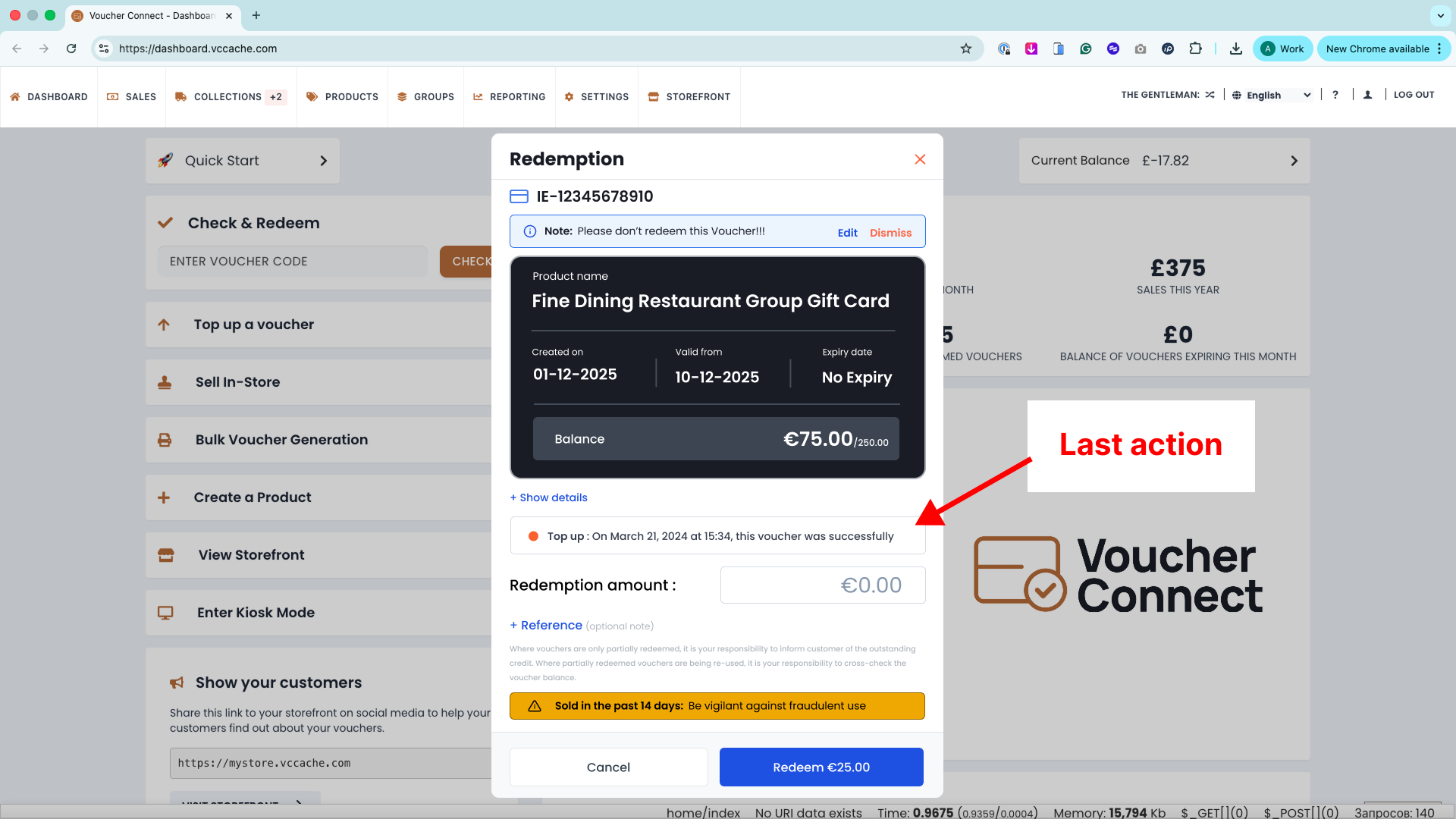
- No audit trail visible inline
Redesign Goals
- Single modal, zero navigation
- Full voucher context always visible
- Clear confirmation + receipt actions
- Configurable for custom fields
Ideation & Exploration.
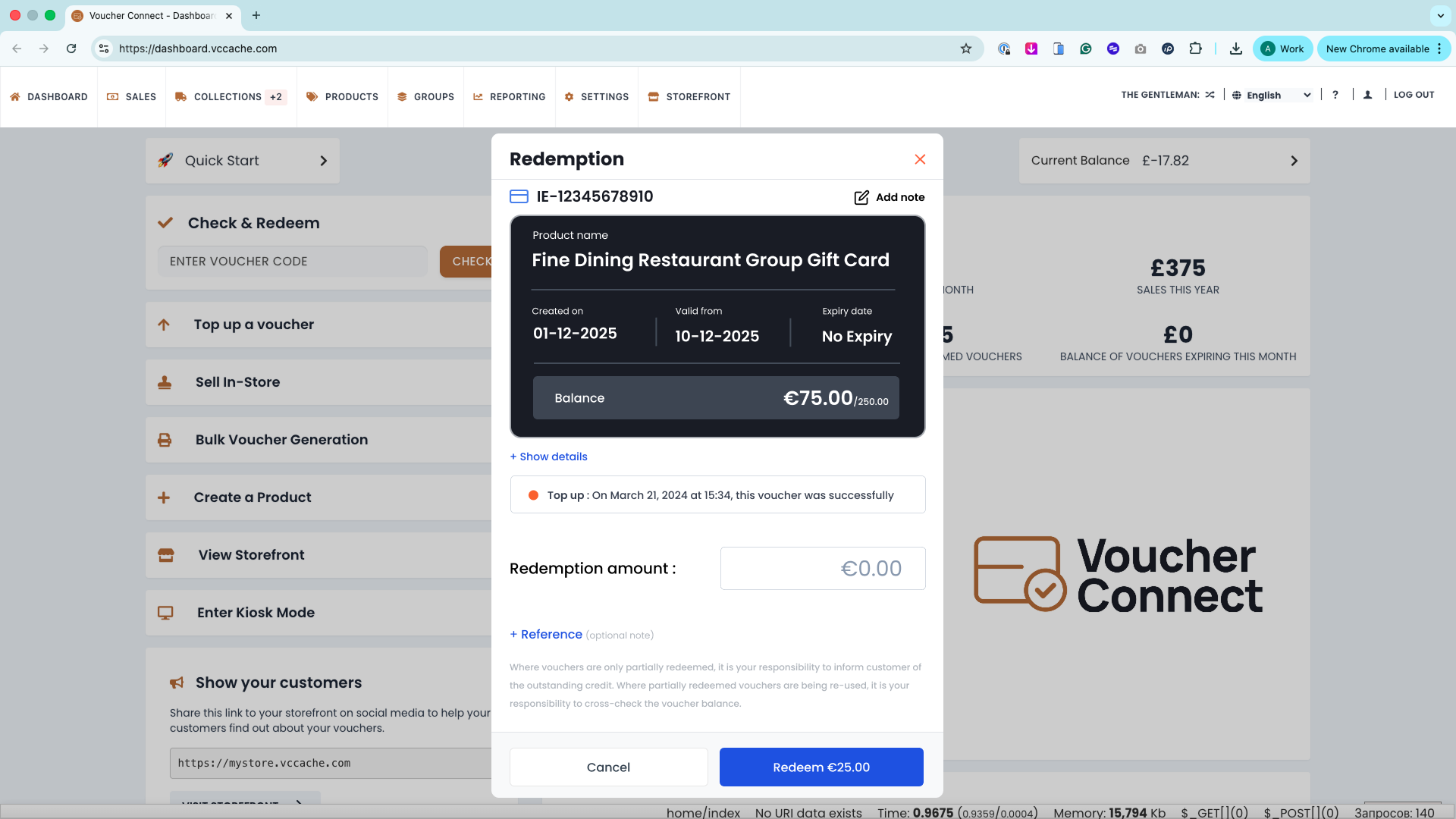
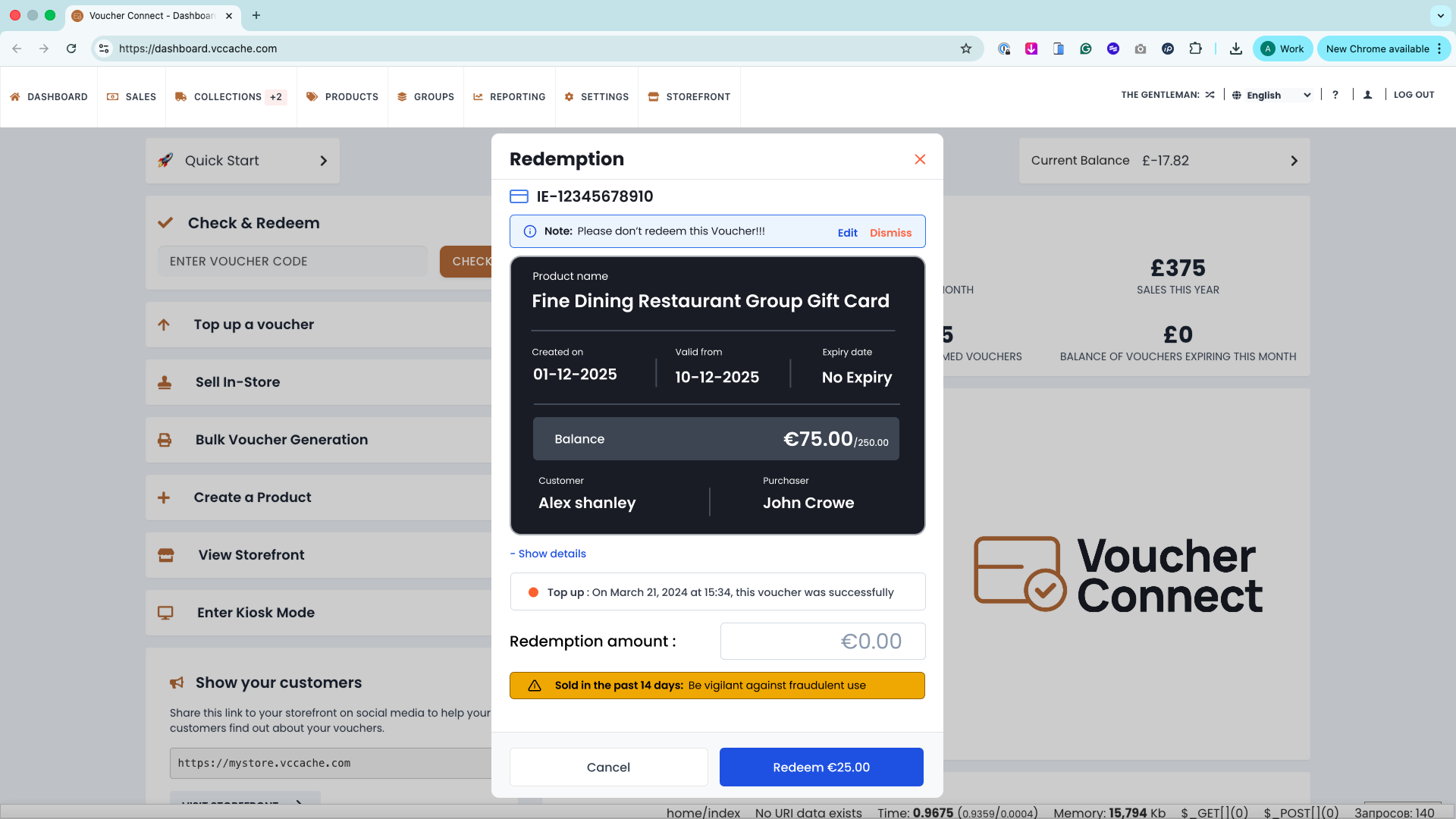
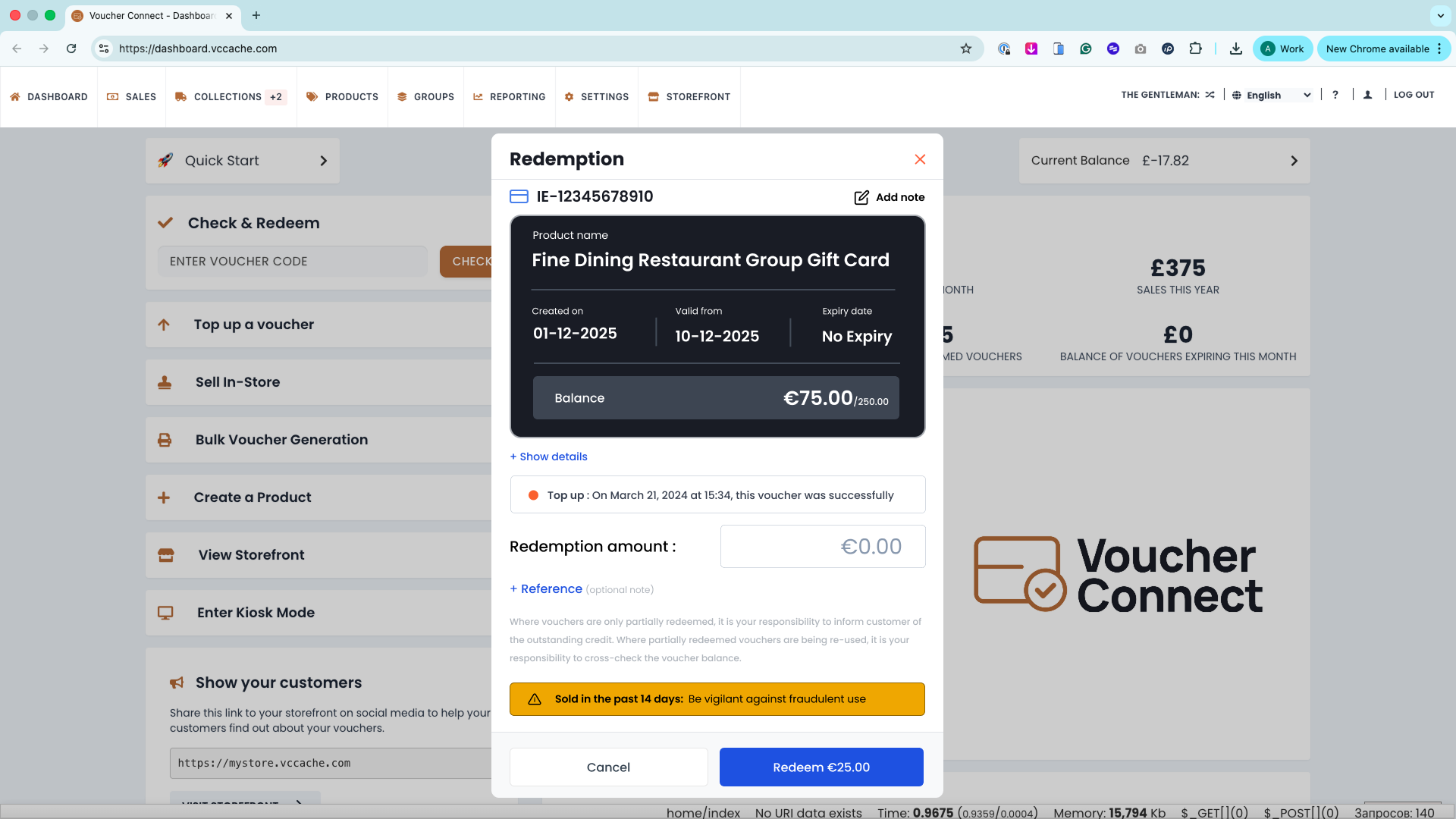
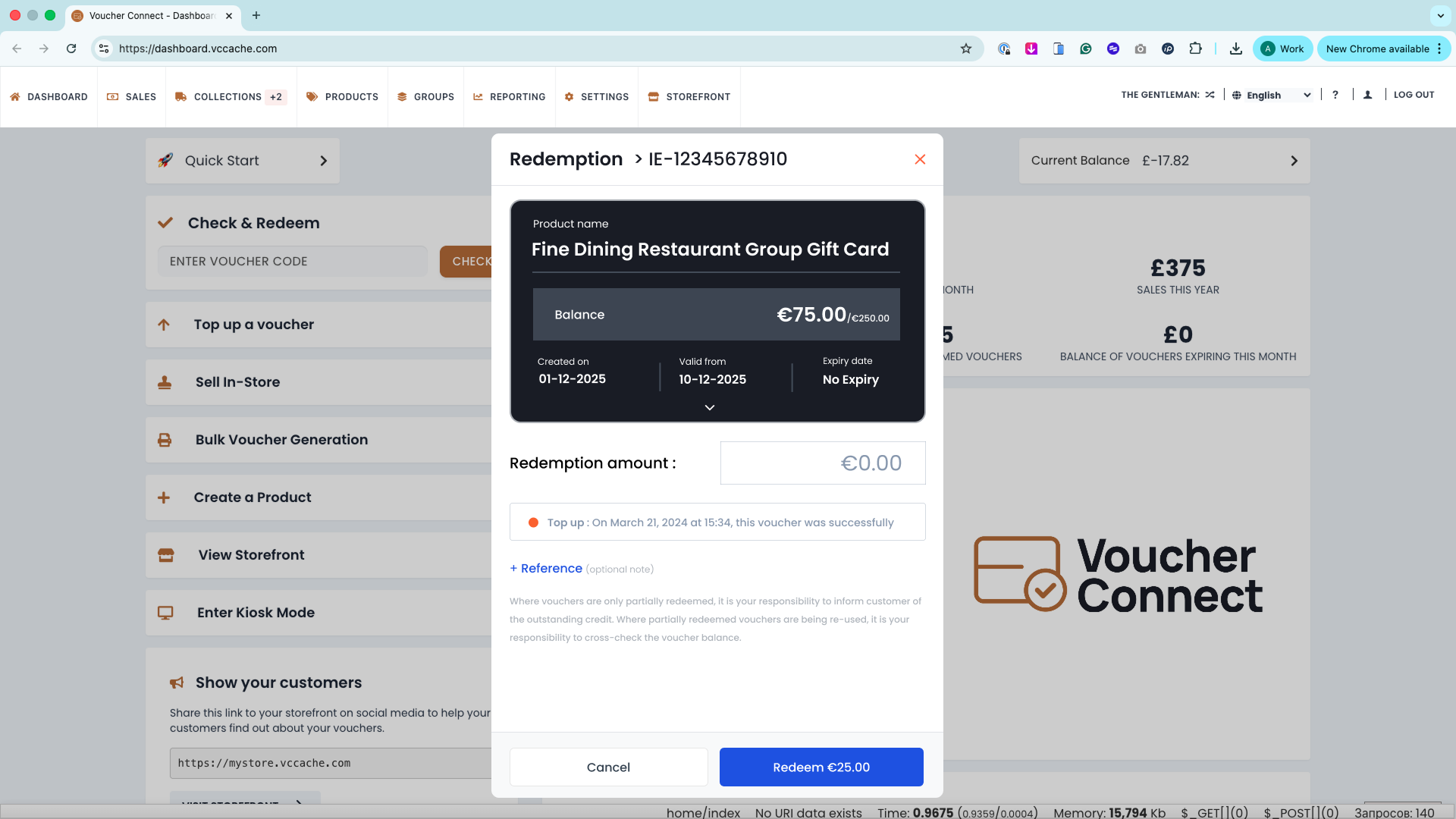
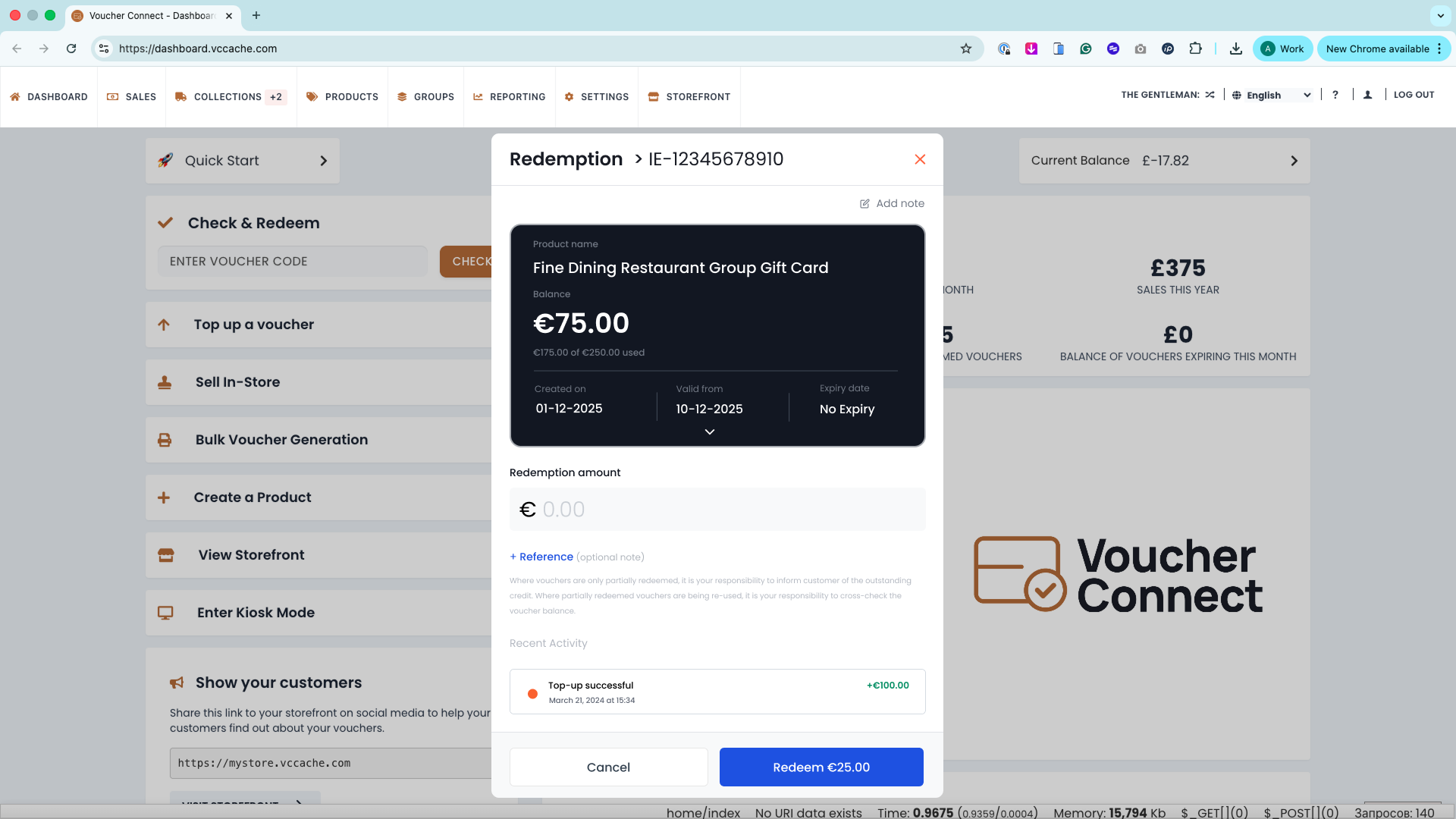
Before moving to high-fidelity, various layout configurations and structural approaches were explored. These rough concepts focused on information hierarchy and the physical placement of the critical balance data versus the input fields.
Design Rationale.
The redesign consolidates everything into a single, confident modal with full voucher context visible at all times. Every edge case and interactive state was meticulously accounted for across 8 distinct variants.
01. Single-pane modal
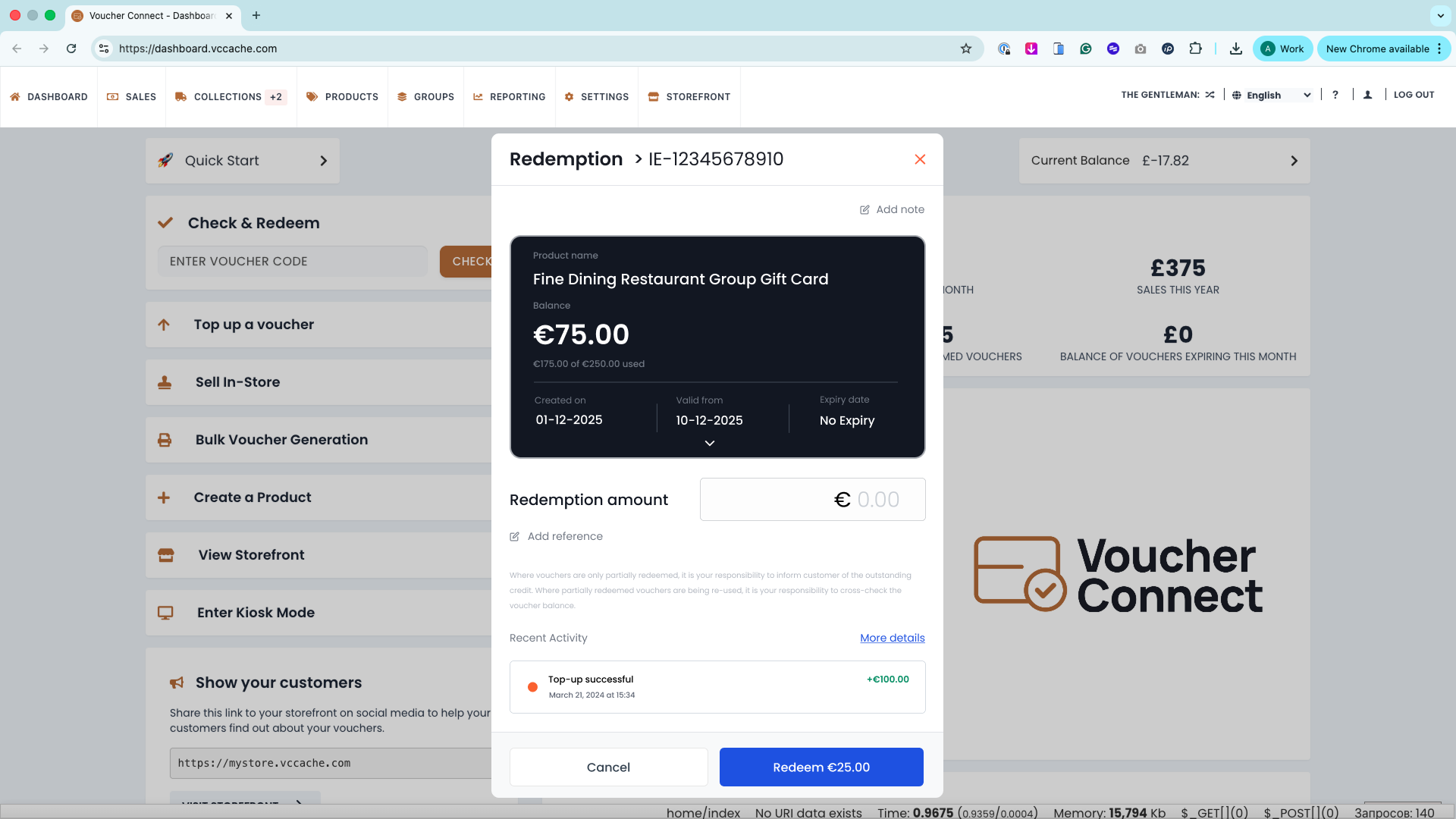
The entire redemption flow lives inside one modal overlay. The merchant sees full voucher context at the top while filling in the redemption amount below — no navigating away.
02. Live balance context
The voucher balance is displayed prominently with a usage tracker. A legal compliance notice is always visible to remind staff of their responsibility when processing partial redemptions.
03. Unambiguous success
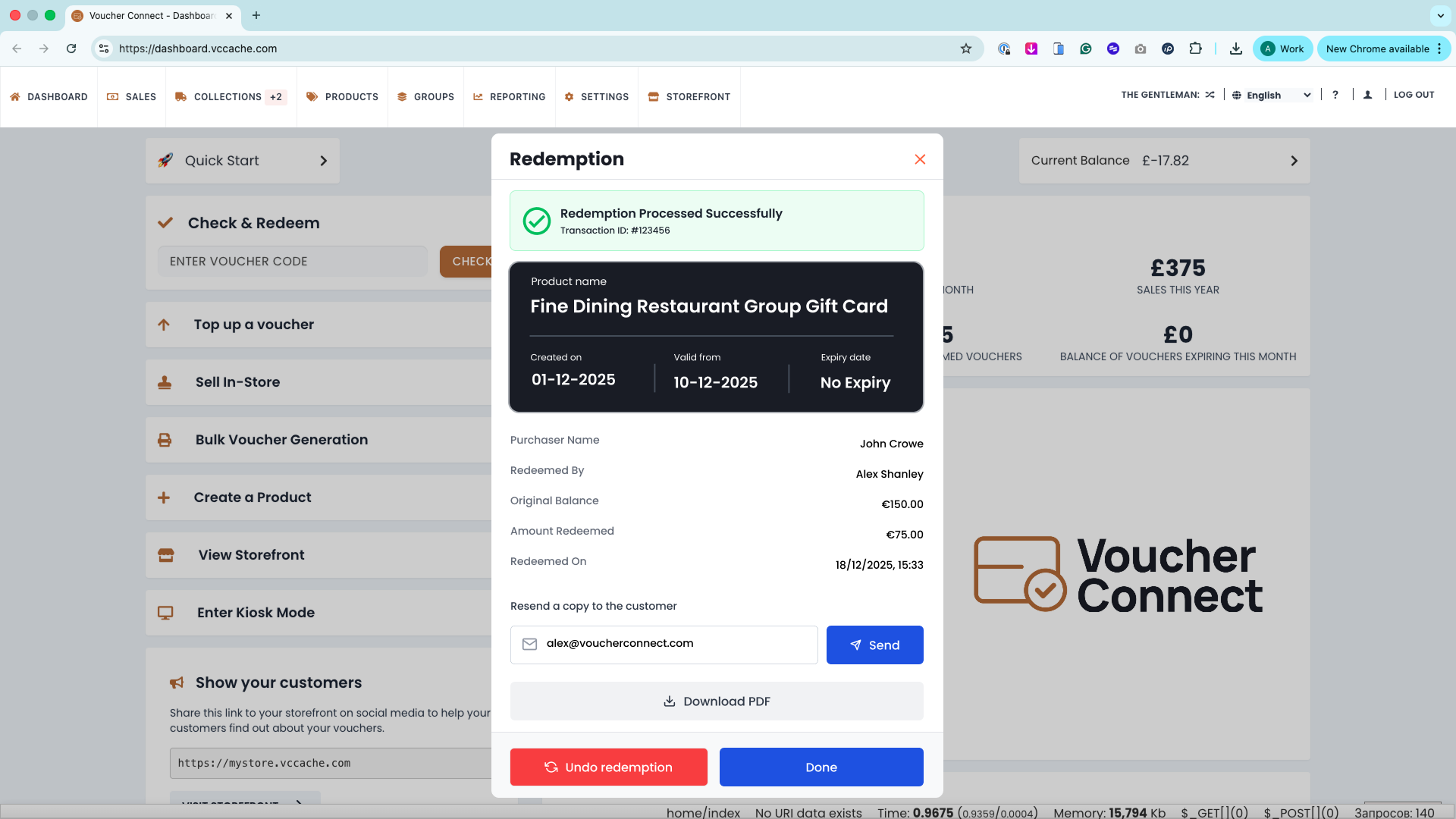
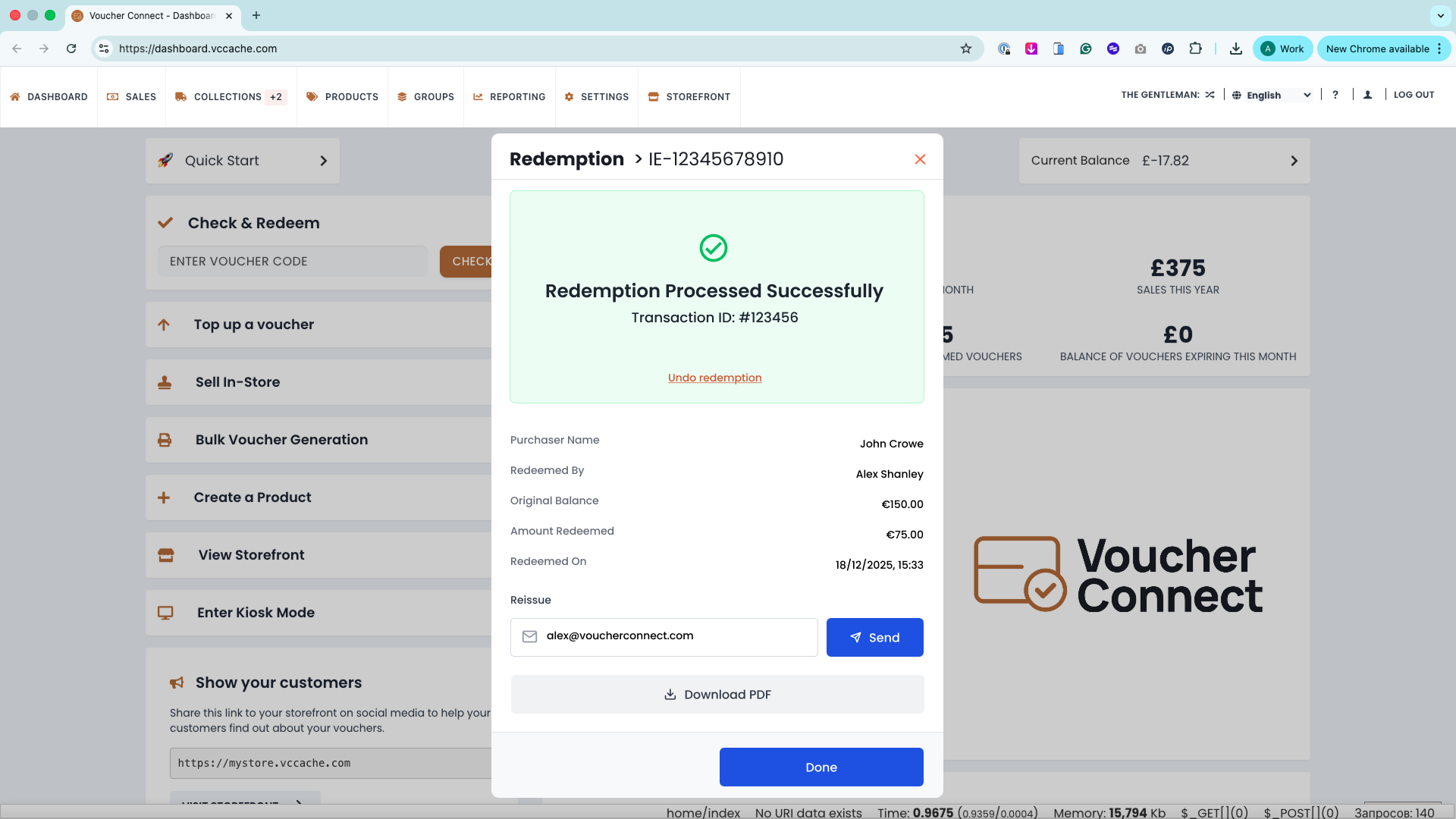
The success screen shows a prominent confirmation card with transaction ID, then a structured table of Purchaser, Redeemed By, Original Balance, and Timestamp, giving staff everything they need instantly.
04. Custom fields
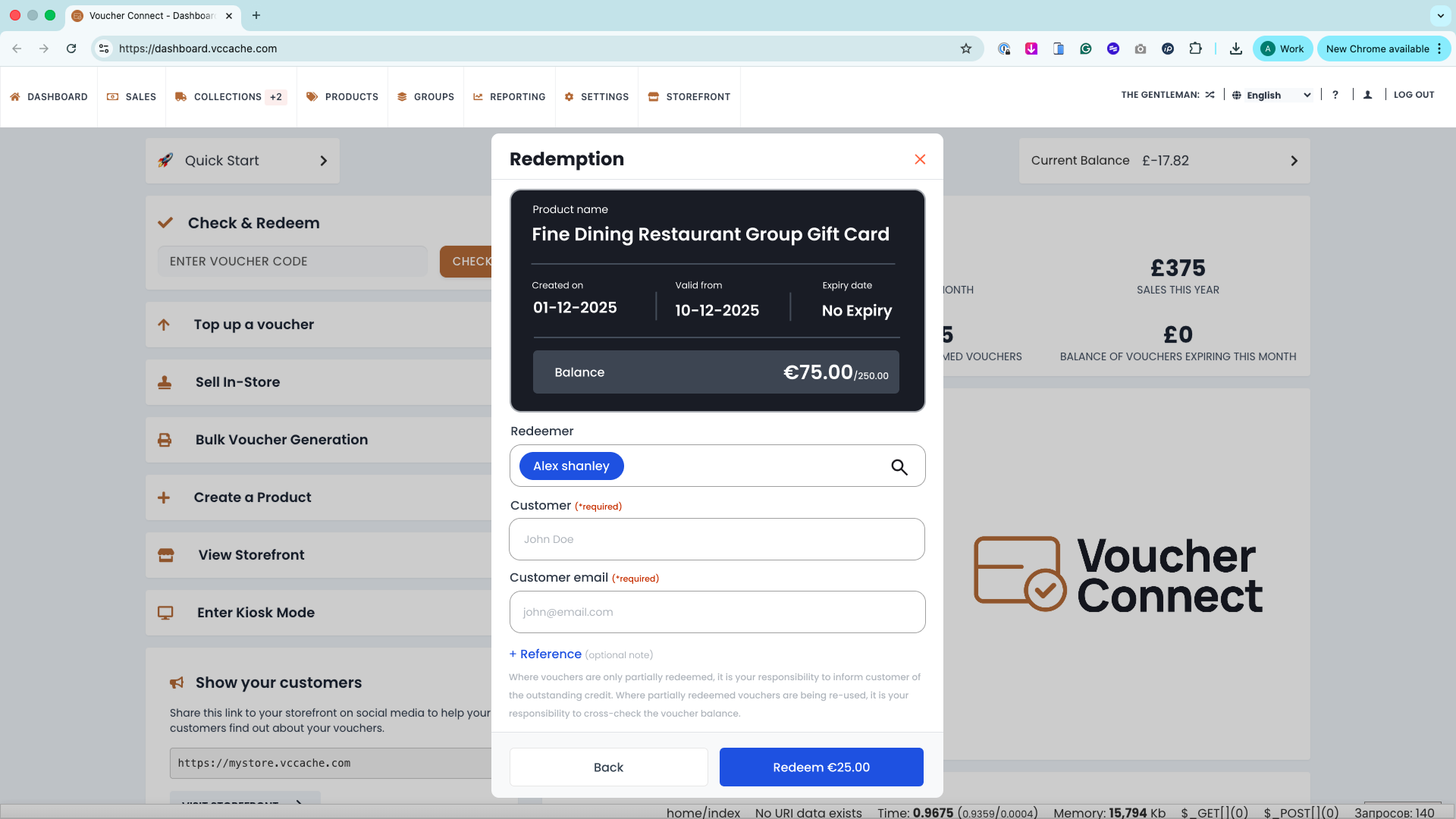
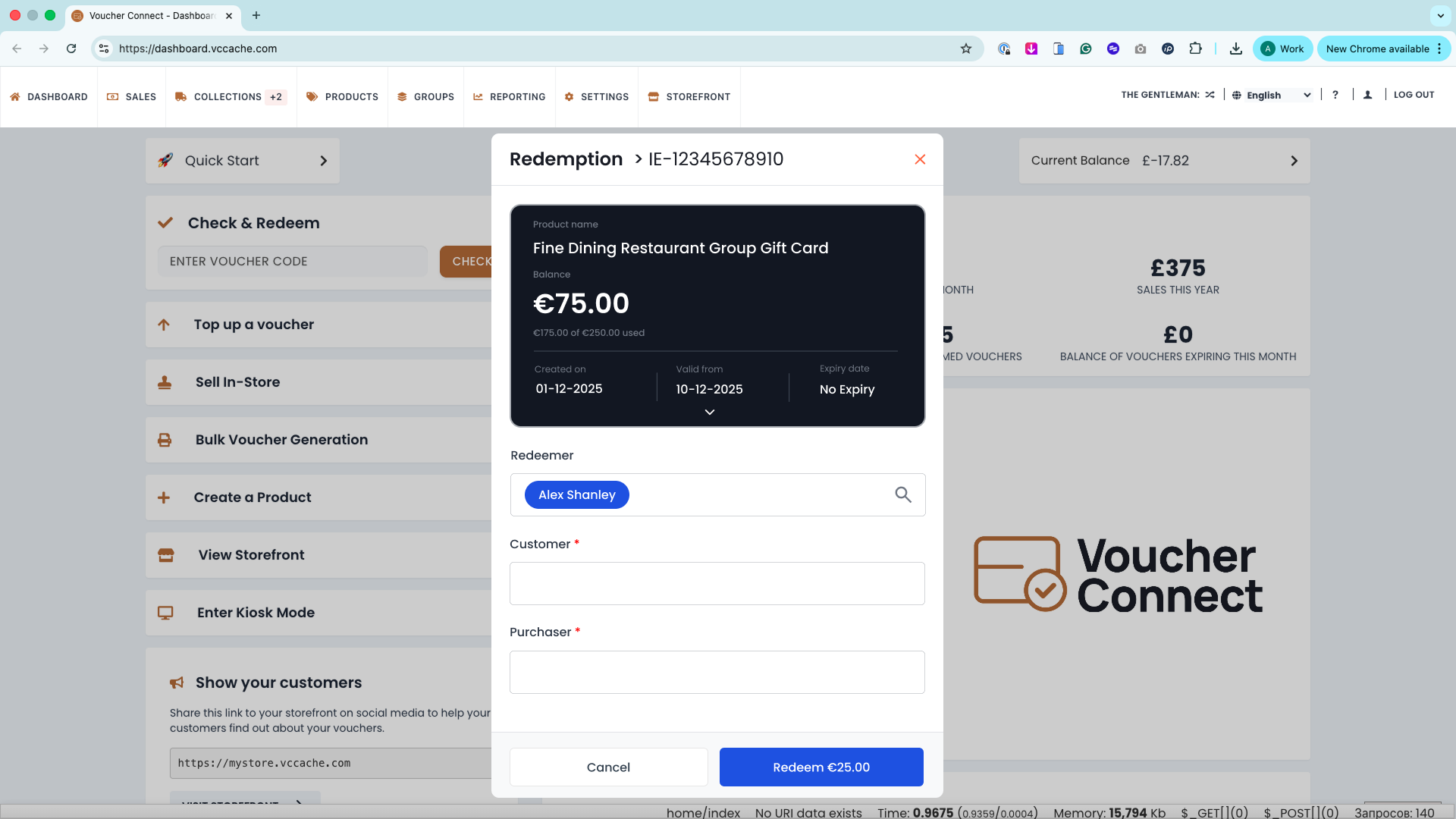
Merchants who require customer attribution can enable custom fields (Redeemer, Customer, Purchaser) with a contact-search dropdown. This allows businesses to tie redemptions to specific customer records.
05. Contextual info banner
If a note exists on the voucher, an alert banner appears directly below the popup header. The merchant can edit inline or dismiss, surfacing important context (e.g. "Gift for corporate client") exactly when it's needed.
06. Post-redemption recovery
After processing, the success screen provides Undo redemption, Reissue (re-send to a new email), Download PDF, and Send — all without closing the popup, reducing support overhead when mistakes happen.
Final Architecture.
The refined, production-ready screens that were handed over for development. These mockups showcase the precise spacing, typography hierarchy, and interactive states of the final redemption module.
Component Inventory.
The UI system was broken down into modular components within Figma, resulting in 8 distinct states to cover every possible merchant scenario.
The 6 Core States
- Default Redemption view: Full voucher detail (product name, balance, usage, validity dates), redemption amount input, recent activity, and legal notice.
- With merchant note: Contextual alert banner below the header showing merchant notes with inline edit and dismiss actions.
- Custom fields variant: Configurable form mode with Redeemer, Customer, and Purchaser fields. Supports contact-lookup with search functionality.
- Redemption success: Transaction confirmed with green success card, transaction ID, full details table, and post-action buttons.
- Reissue voucher flow: Post-success reissue action — enter a new email address to re-send the voucher. Includes sent confirmation and validation error state.
- Transaction detail popup: Secondary popup overlay showing transaction ID, date, and actions (Refund, Resend Receipt) — triggered from the Recent Activity row.
Interaction Flow
A completely linear, modal-based progression preventing user drop-off. The merchant never leaves the popup until the redemption is fully resolved.
- Scan / Enter voucher code
- Popup opens — voucher detail displayed
- Enter redemption amount
- Optional: add reference / note
- Confirm redemption
- Success state + post-actions branches: Download PDF receipt, send receipt by email, reissue to new email, undo redemption, or close (Done).